Online Markdown Conversion Guide & Technical Reference
Everything you need to know about transforming Markdown syntax across document formats with browser-side privacy, zero latency, and typographic fidelity.
Modern Document Workflows & The Role of an Online Markdown Converter
Conceived in 2004 by John Gruber and Aaron Swartz, Markdown began as an intuitive plain-text formatting syntax that converts cleanly into structured HTML. Over two decades, it has become the standard composing language for software development, technical documentation, and academic writing across GitHub, GitLab, and modern authoring tools.
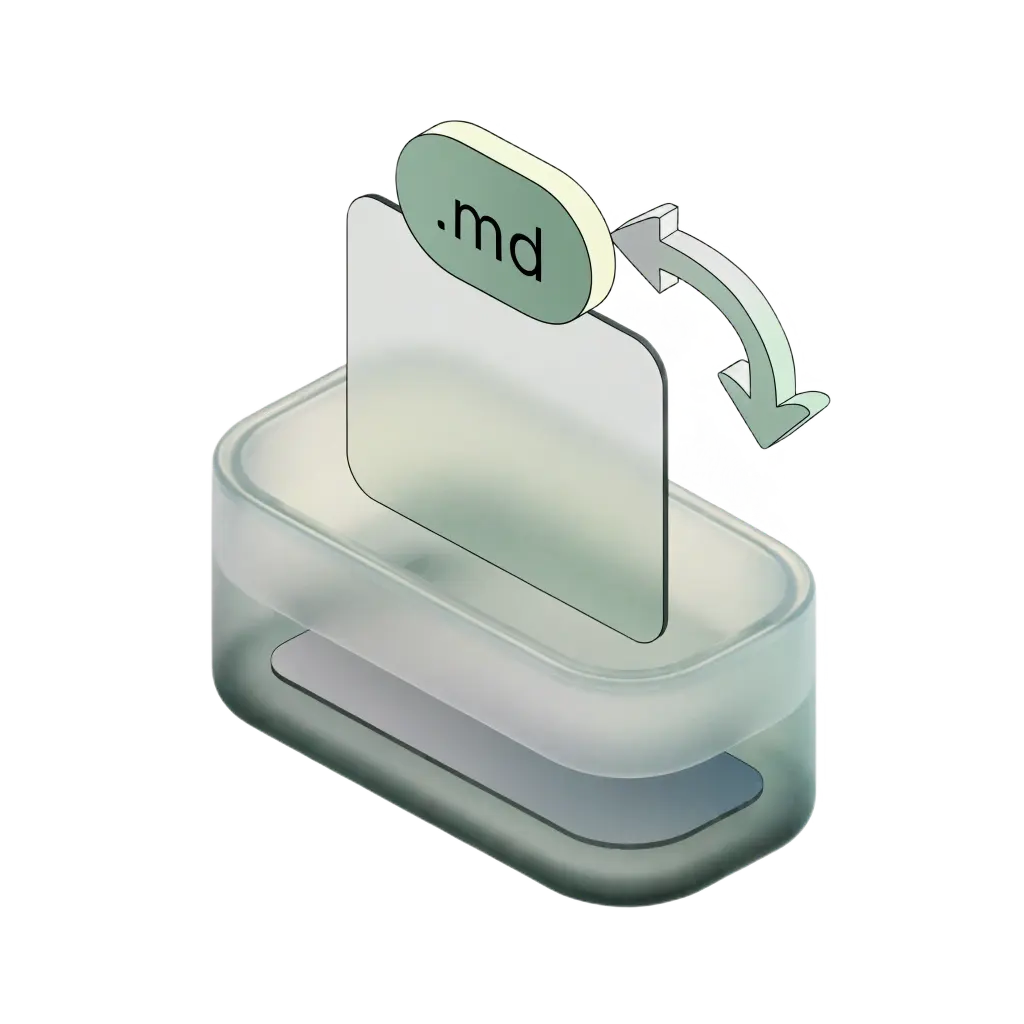
While raw Markdown (.md) is ideal for writing, final distribution often requires specialized file formats. Teammates need formatted Word (.docx) documents for editorial review, clients expect paginated PDF reports with exact typography, websites require semantic HTML markup, and text processing pipelines need stripped plain text. An online markdown converter bridges lightweight source files and polished publication formats.
AllMDConverter provides a complete, free online markdown converter and free online markdown editor suite. It eliminates slow server queues, avoids restrictive paywalls, and ensures total document confidentiality by running entirely in your browser.
Supported Markdown Dialects & Syntax Conversion Capabilities
A versatile markdown converter must handle advanced document elements beyond simple headings, emphasis tags, and bulleted lists. Our conversion pipeline supports both the standard CommonMark specification and GitHub Flavored Markdown (GFM) extensions:
GFM Tables & Column Alignment
Full parsing of pipe-delimited tables with custom text alignment (left, center, right), structured header rows, and inline formatting inside table cells.
KaTeX Mathematical Typesetting
Native evaluation of inline math ($E=mc^2$) and display math blocks ($$\int f(x)dx$$) rendered into crisp MathML and vector equations.
Task Lists & Checkboxes
Interactive GFM task checklists (`[ ]` and `[x]`) rendered with semantic checkbox elements for progress tracking and task outlines.
Footnotes & Citations
Numerical footnote references (`[^1]`) compiled into an organized endnotes section with working back-reference links.
The parser also preserves fenced code blocks with language indicators, blockquotes, strikethrough styling, autolinks, and images, mapping them directly into native target primitives across PDF, Word, HTML, and text.
Zero-Server Architecture: Why In-Browser Markdown Processing Protects Your Data
Most online document conversion websites rely on backend server APIs. When converting files through third-party servers, sensitive source code, internal business plans, or private notes travel over the network and risk being stored, logged, or inspected.
AllMDConverter is engineered around private, client-side browser execution. Using WebAssembly, Web Workers, and modern browser APIs, all document processing runs locally on your device:
- ✓Zero Remote Uploads: Your files never leave your device. Conversion scripts execute in your browser tab without network transfers.
- ✓DOMPurify Sanitization: Rendered HTML passes through DOMPurify to strip malicious scripts and protect against XSS injection.
- ✓No Logs or Tracking: We do not track user sessions or store document contents. Ephemeral state clears when closing the tab.
- ✓Instant Conversion: Without round-trip network delays, document rendering and file downloads happen with real-time speed.
This architecture ensures compliance with strict data protection requirements, GDPR standards, and team confidentiality agreements.
Comprehensive Breakdown of the 8 Conversion Engines
Our free markdown converter suite provides eight dedicated, bidirectional tools designed for specific developer workflows:
1. Markdown to PDF:High-resolution PDF generation with custom font pairings, KaTeX math typesetting, and dark mode themes.
Open Tool →2. Markdown to HTML:Converts markdown to clean, semantic HTML5 markup with live preview and syntax-highlighted code output.
Open Tool →3. Markdown to DOCX:Exports Markdown into formatted Microsoft Word documents preserving structured tables, headings, and styles.
Open Tool →4. Markdown to Text:Strips markdown formatting tags, links, and markers to produce unformatted, clean plain text.
Open Tool →5. PDF to Markdown:Extracts text and tabular content from PDF files and converts them into organized Markdown syntax.
Open Tool →6. HTML to Markdown:Converts web snippets and raw HTML into human-readable Markdown with defensive DOMPurify sanitization.
Open Tool →7. DOCX to Markdown:Imports Microsoft Word files and transforms them into clean Markdown while keeping document hierarchy intact.
Open Tool →8. Text to Markdown:Structures unformatted plain text into organized Markdown with automatic paragraph and list recognition.
Open Tool →Each conversion engine includes an interactive split-pane editor, drag-and-drop file loading, instant preview, and instant file downloads.
Frequently Asked Questions About Markdown & Our Converter Suite
Essential questions regarding markdown formatting, syntax highlighting, document security, and conversion capabilities.
What is a markdown file and how does it work?↓
A markdown file is a plain-text document saved with a .md or .markdown extension. Created in 2004 by John Gruber and Aaron Swartz, it uses lightweight formatting symbols (like hashes for headings, asterisks for emphasis, and brackets for links) that open in any text editor, track cleanly in Git, and convert into HTML, PDF, or DOCX.
How to bold, italicize, or strikethrough text in markdown?↓
To bold text in markdown, wrap words in double asterisks (**bold**). For italics, use single asterisks (*italic*). For strikethrough, use double tildes (~~strikethrough~~). You can also combine bold and italics using three asterisks (***bold and italic***).
What is markdown formatting and basic syntax?↓
Markdown formatting is a standardized set of typographic conventions used to structure plain text without HTML tags. Core conventions include # through ###### for headings, - or * for bullet lists, 1. for numbered lists, > for blockquotes, and `code` for inline code spans.
How to view markdown in vscode with live preview?↓
To view markdown in VS Code, open your .md file and press Ctrl+Shift+V (Windows/Linux) or Cmd+Shift+V (Mac) for full preview. For a live side-by-side split preview as you edit, press Ctrl+K V (Cmd+K V) or click the split preview icon in the editor tab bar.
How to make a table in markdown with column alignment?↓
To make a table in markdown, use pipes (|) to separate columns and hyphens (-) for the header row: | Header 1 | Header 2 | followed by | --- | --- |. Align columns using colons: :--- (left), :---: (center), and ---: (right).
How to add code blocks and syntax highlighting in markdown?↓
Fenced code blocks are created using three backticks followed by the language identifier (such as javascript, python, or bash). Close the block with three backticks on their own line to display syntax-highlighted code.
How to add links and images in markdown?↓
To add a hyperlink in markdown, use brackets for anchor text and parentheses for the URL: [link text](url). To embed an image, prepend an exclamation mark: .
Is this free online markdown converter completely free to use?↓
Yes, AllMDConverter is 100% free with no hidden fees, subscriptions, or paywalls. You can convert unlimited files of any size without creating an account or providing an email address. No watermarks are ever added.
How are my files and documents protected from data leaks?↓
All parsing, rendering, and conversion execution takes place entirely client-side within your browser sandbox. Your document text and uploaded files are never transmitted across the network, stored on remote servers, or logged in any database.